Editable JSON and public HTML/ZIP: the difference
Separate editable backups from public exports, organize versions and make saving, checking, exporting and uploading a repeatable routine.
Published
Edited by Lumitoha Team · Updated
About 4 min read
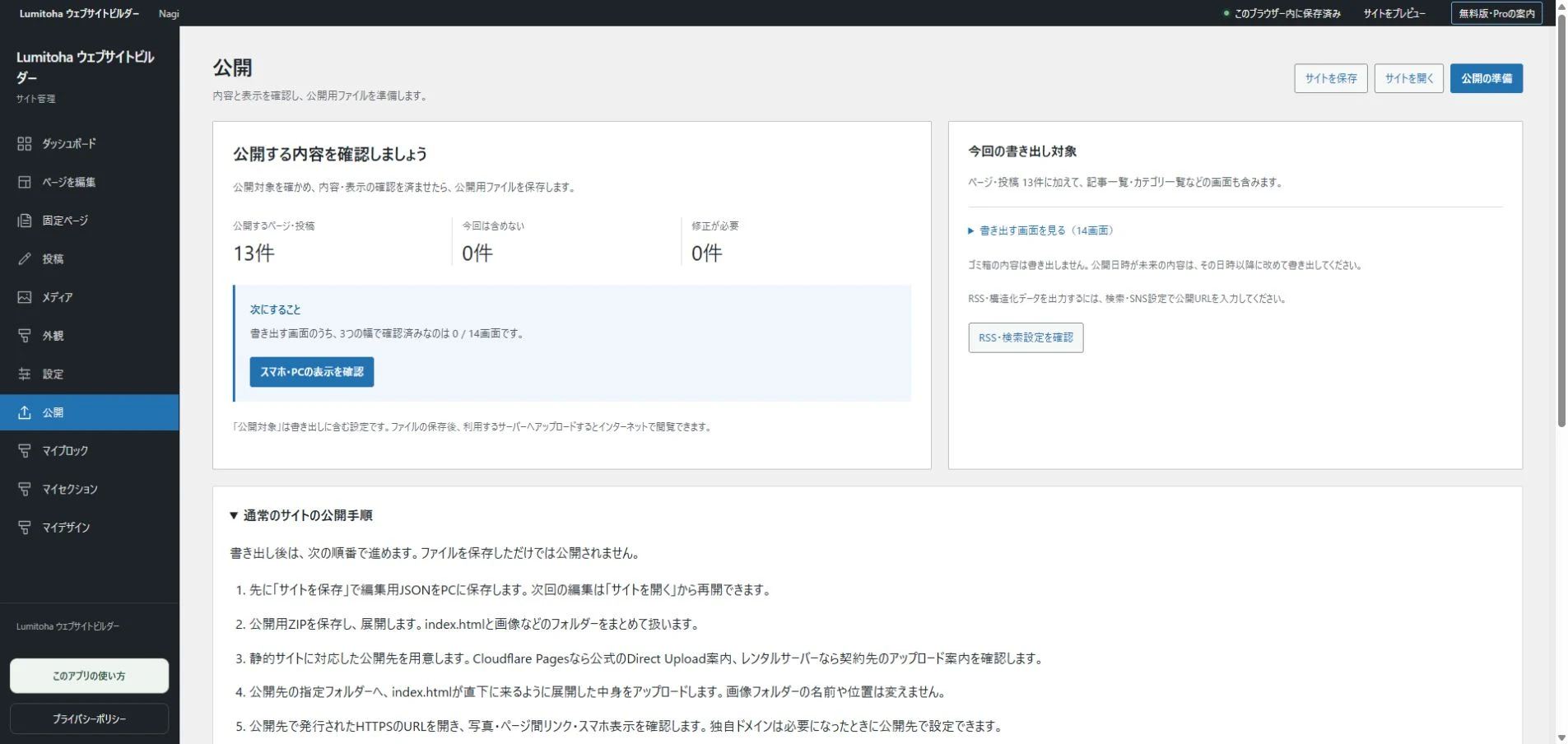
Lumitoha uses editable JSON for continuing your work and HTML or ZIP for publishing it on the web. Saving JSON does not update your hosted site. Exporting the public files does not replace the need to keep an editable backup.
Once you separate those purposes, a repeatable sequence—save, check, export and upload—makes updates easier to manage. Here is how to organize the files and avoid confusing the version on your computer with the one your visitors can see.
1. Keep JSON for future editing
An editable JSON file lets you load your website’s content and structure again later. Save it at meaningful points during your work, not only when the site feels finished. A copy from before a major layout change provides a useful reference when you want to compare versions.
Make sure you can identify the version that was last reviewed. Repeatedly overwriting an ambiguous filename makes it harder to find an earlier state. Do not rely only on what is currently visible inside the app. Check that the saved file exists in a location you can access, especially before an app update or a move to another environment.
2. Use HTML and ZIP to deliver the website
Exported files are intended for people to view on the web. A ZIP is a convenient package containing multiple files; normally you extract it and upload the contents. Keeping a ZIP on your computer does not make your site public.
You need a separate hosting environment. Follow that service’s instructions and include images and other assets along with the HTML. If only the page files are uploaded, text may appear while photographs are missing. Do not assume the public files contain everything needed to restore the editing experience. Use JSON to continue editing and HTML/ZIP to publish, and keep them as distinct sets of files.
3. Decide on folders and filenames early
Create a folder named for the website. Within it, separating editable backups, public exports and source material makes it easier to distinguish an original photograph from an exported asset. If you maintain several websites, give each its own folder.
A name such as “website_2026-11-16_checked.json” can identify a meaningful checkpoint. The naming rule is your choice; the important part is understanding it later. Dates and short change descriptions are usually clearer than “final,” “final2” and “really-final.” Before removing files, identify the version used for the latest publication and avoid deleting your only editable copy.
4. Review publishing targets before export
Check the publishing-target settings for pages and posts in Lumitoha. Finished samples begin as drafts, so editing their content does not necessarily include them in an export. Switch the items you want to publish to the appropriate target state.
Pages with future publishing dates are also excluded from that export. Do not assume the app will automatically update an external host when that time arrives. Check the targets at the time you intend to publish, then export and upload. After fixing anything found in preview, save JSON again so that your editable backup matches the files you are about to publish.
5. Treat an update as a complete journey
Even changing a single line of opening hours requires more than editing the local page. Make the change, save JSON, export again, update the hosted files and check that line at the real URL. This keeps local work and the public version connected.
When adding a post, review the listing and links between articles too. The exact files you replace depend on the hosting workflow, so follow your provider’s setup. If an old version still appears, confirm the uploaded files, destination folder and URL before changing settings. Browser or delivery caches can also be involved, but begin by checking what was actually uploaded and where.
6. Confirm that a backup is usable
A backup should be usable, not merely present. Before a significant update or migration, save the current state and check that the JSON loads the expected website and pages. Do this carefully so that the work you want to keep is already saved before opening another file.
Consider keeping a copy in another suitable location rather than depending on one storage device. Keep editable backups separate from the files intended for public access. A small, consistent saving routine gives you a reliable starting point for the next update and makes it easier to keep your website growing over time.
Find your own balance of Free and Pro
Understand the free core, design previews and Pro’s extra tools, then decide using the work your own website actually needs.
Read moreWhat a small shop website needs to tell people
Combine atmosphere with useful information about products, hours, access and working contact routes, from a first-time visitor’s perspective.
Read moreGetting started with Lumitoha
From a finished design to saved work and public files.
Read moreShare this article
Share on Instagram
Copy the link and paste it into a Stories link sticker or a direct message.
Open Instagram
Comments
Your display name and comment appear after approval. Your email address is not public. Please read our privacy policy.
Comments (0)