Find your own balance of Free and Pro
Understand the free core, design previews and Pro’s extra tools, then decide using the work your own website actually needs.
Published
Edited by Lumitoha Team · Updated
About 4 min read
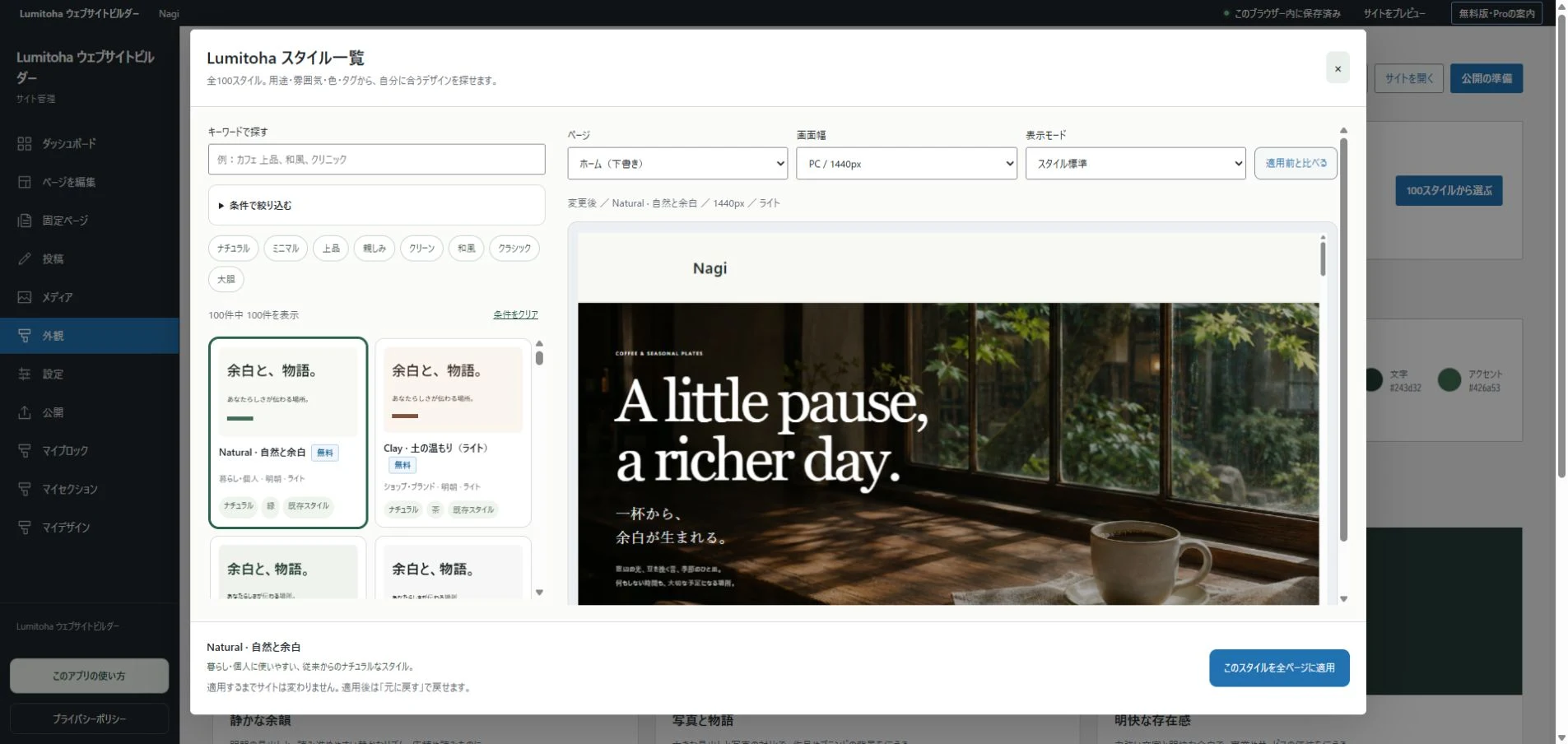
Lumitoha is a Windows website builder with a free core and additional features available through in-app purchases. You can begin with editing, saving and export, then consider Pro after you understand which designs or repeated tasks matter to your work.
This guide separates what you can do for free from the situations where extra tools may help. Microsoft Store release is currently in preparation. Check the Get Lumitoha page for availability and the in-app purchase screen for prices and terms when the app is available.
1. Try the whole basic workflow for free
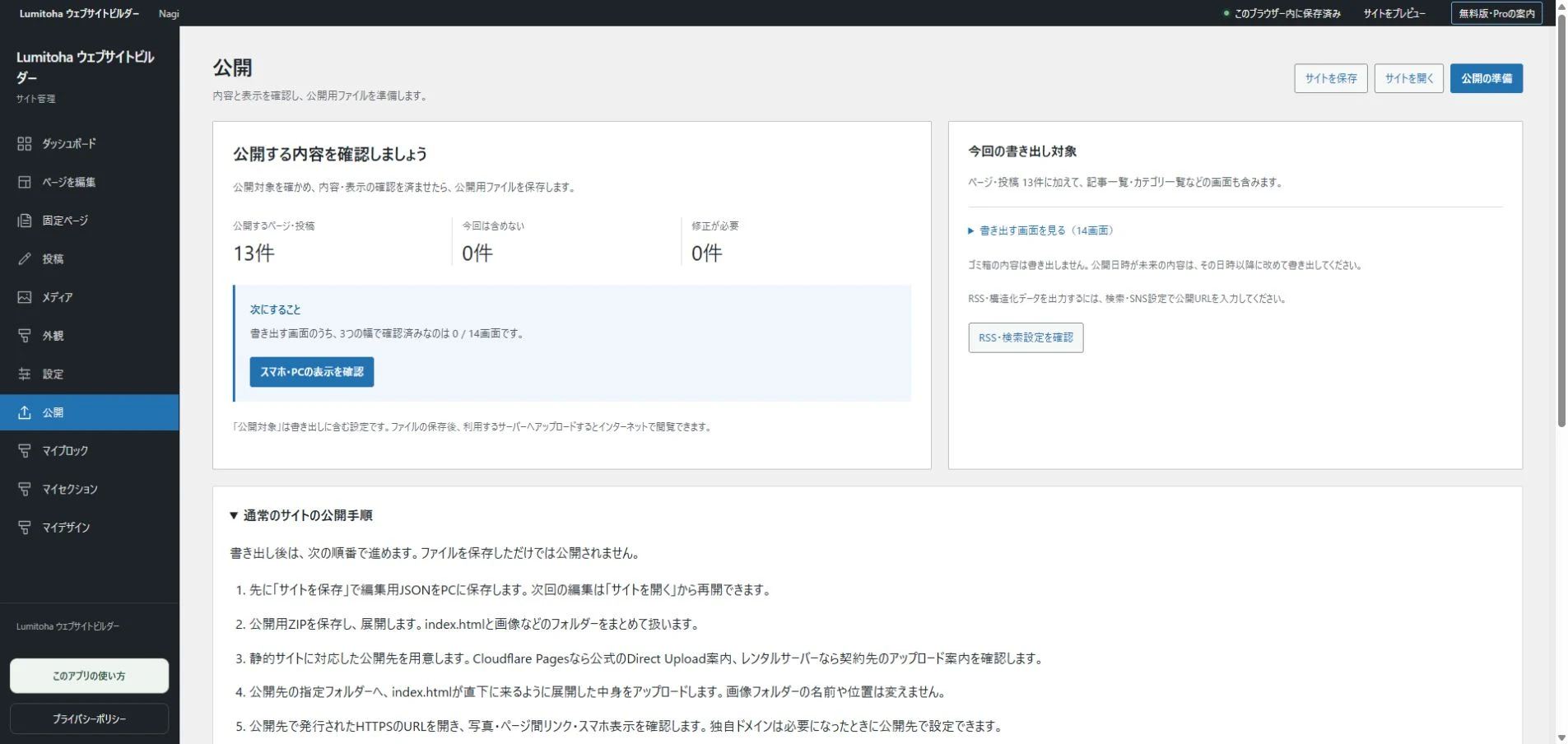
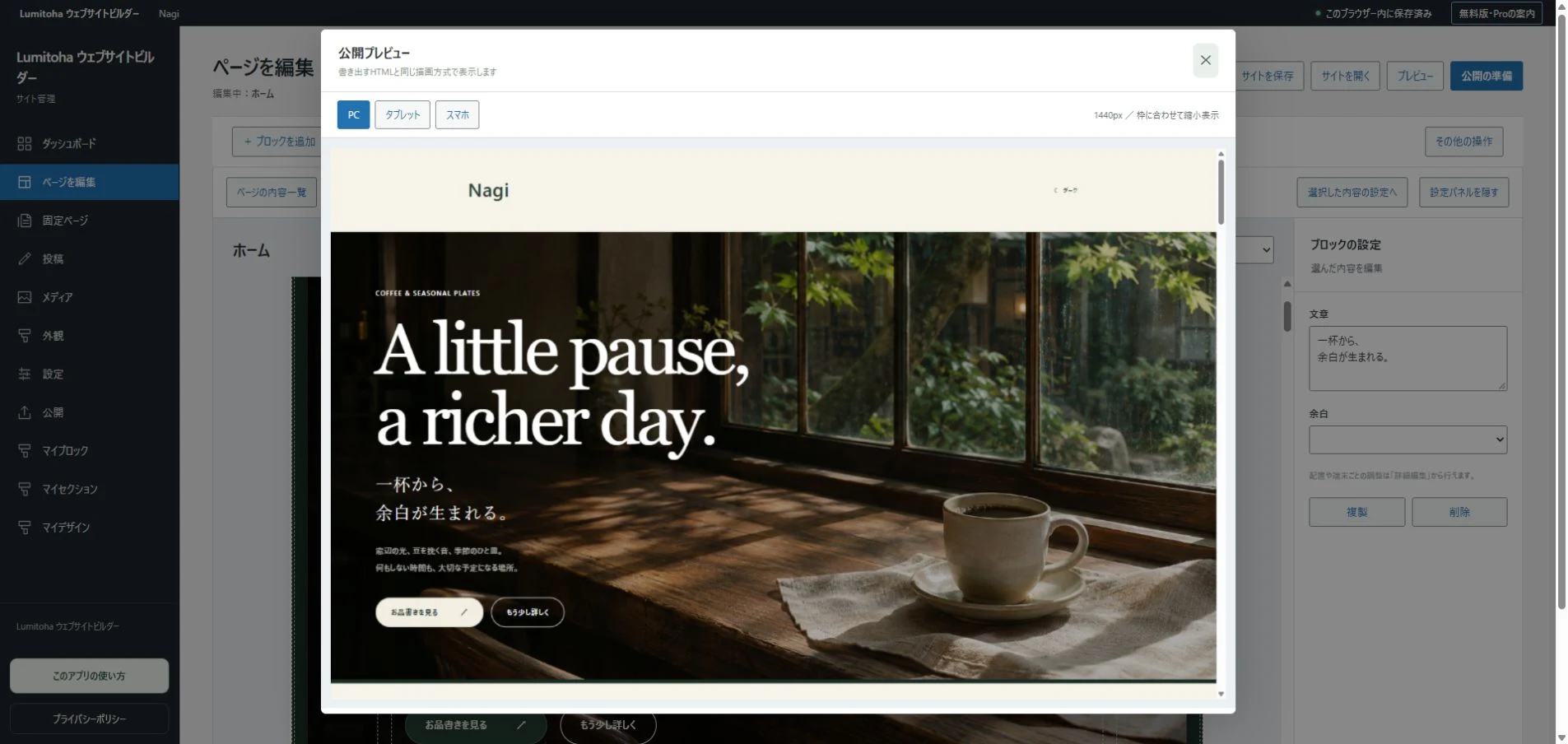
The free core includes basic editing of text, photos and blocks, pages and blog posts, and editable JSON save and load. You can preview different widths, run pre-publication checks and export HTML or a ZIP. That lets you work through the essential website-creation process.
Nagi is also free to use. Begin by replacing its sample text and images with your own. Preparing real information, saving the result and practicing an update will give you more concrete questions than browsing a long feature list alone. The core is not presented as a time-limited trial; start with what it offers before deciding on additional features.
2. Distinguish previewing a design from using it
You can preview all finished designs for free. Using designs other than Nagi for your own site requires Pro. Keep those two ideas separate: being able to inspect a design does not mean its use is included in the free core.
When comparing Yoha, Sui and other designs, consider their reading order and space for text as well as their colors and photos. Do you want to showcase a large work image or guide someone through practical shop information? The examples are fictional samples. Replace their names, words and contact details, and check the conditions for the assets you use as well as the design’s usage category.
3. Consider Pro for particular kinds of content
Pro adds finished designs, templates, sections and styles. Its blocks include pricing cards, testimonials, comparison tables, process steps, feature cards and action banners. These provide more ways to organize information when your content calls for them.
Choose according to the job, not simply the number of options. A comparison table may help people evaluate plans; steps may explain a process. Having a section available is not a reason to fill it with unsupported material. If you have no genuine testimonials or measured results, explain your approach and service instead of inventing reviews or figures.
4. Look at reuse when work becomes repetitive
Pro includes saving and reusing personal designs, blocks and sections, along with bulk editing of pages and posts. These options may become relevant when several pages share a structure or an expanding journal needs coordinated updates.
On a first small page, you may not yet know which tasks will repeat. Edit some real content and note the parts you rebuild or change often. Those notes help you evaluate a tool’s purpose. When reusing content, still check names, dates and contact details: reuse is not a replacement for reviewing information that varies between pages or projects.
5. Separate app features from hosting costs
The free/Pro distinction concerns the app. Hosting and domain services are separate. After exporting your website, upload the files to the hosting environment you choose. That service may have its own charges and requirements, which should be considered independently of the app’s features.
For Pro pricing and purchase terms, use the Microsoft Store purchase screen inside the app. This website does not take payments directly. Because the Store release is in preparation, we do not provide an invented product URL or an unconfirmed price. Check the current availability information rather than assuming a download or purchase link is already live.
6. Decide using a website of your own
A useful order is to create some real content with free Nagi, preview the other designs, then list the expressions and repeated tasks you want to add. Compare that list with the Free & Pro page and the app’s purchase information.
Sites you have already created can be edited, saved and published while using the free core. Whichever features you choose, keep editable JSON backups and review the site before publishing. The most useful question is whether the workflow lets you express what matters and return to it later, not how many options you can collect at the beginning.
What a small shop website needs to tell people
Combine atmosphere with useful information about products, hours, access and working contact routes, from a first-time visitor’s perspective.
Read moreA portfolio that tells the story behind your work
Choose representative projects and explain their purpose, images, your role and decisions, with a clear next step for interested visitors.
Read moreGetting started with Lumitoha
From a finished design to saved work and public files.
Read moreShare this article
Share on Instagram
Copy the link and paste it into a Stories link sticker or a direct message.
Open Instagram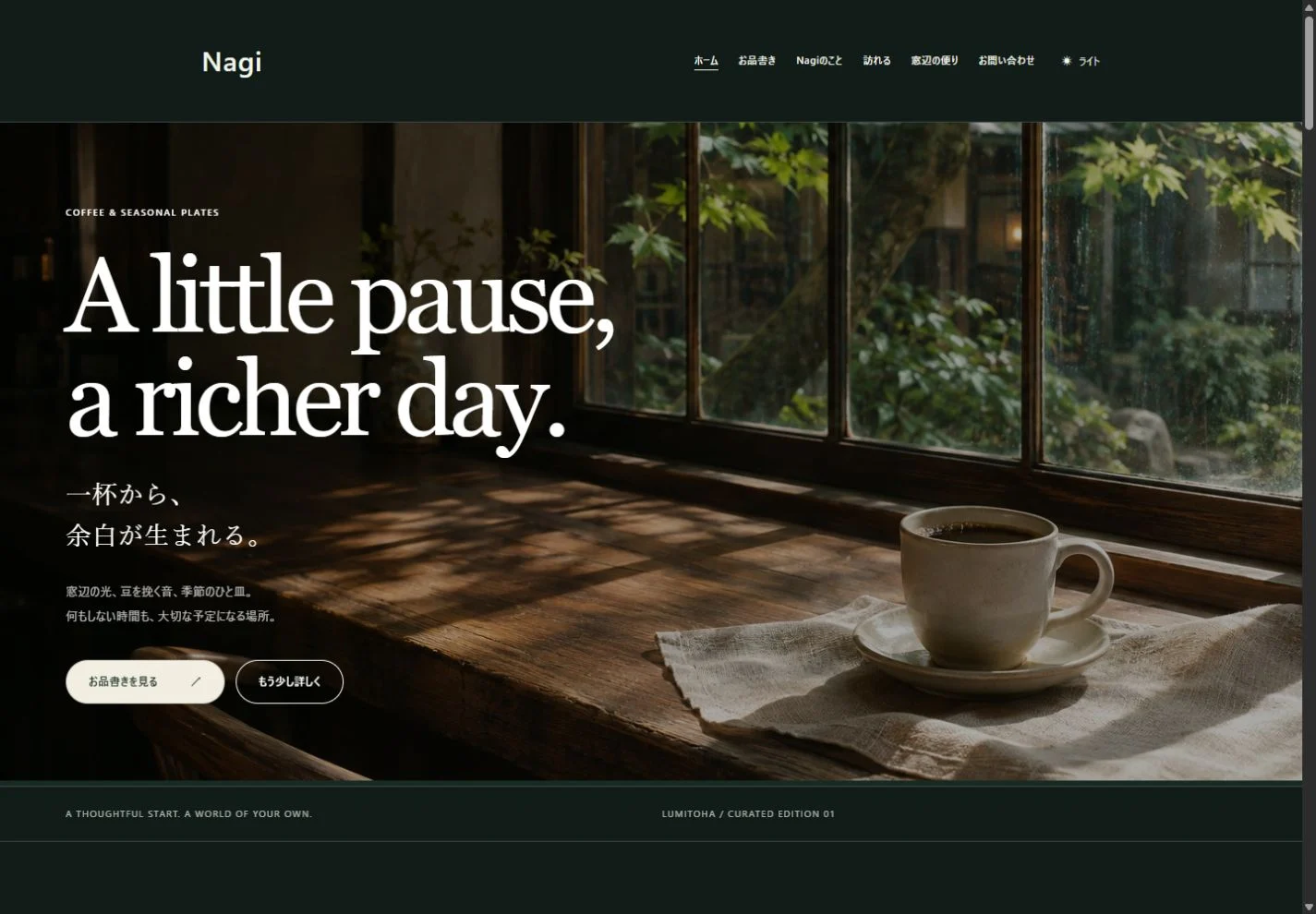
Comments
Your display name and comment appear after approval. Your email address is not public. Please read our privacy policy.
Comments (0)