A thoughtful checklist before you publish
Review facts, headings, links, mobile layouts, publishing targets and backups, then check the website at its actual public address.
Published
Edited by Lumitoha Team · Updated
About 4 min read
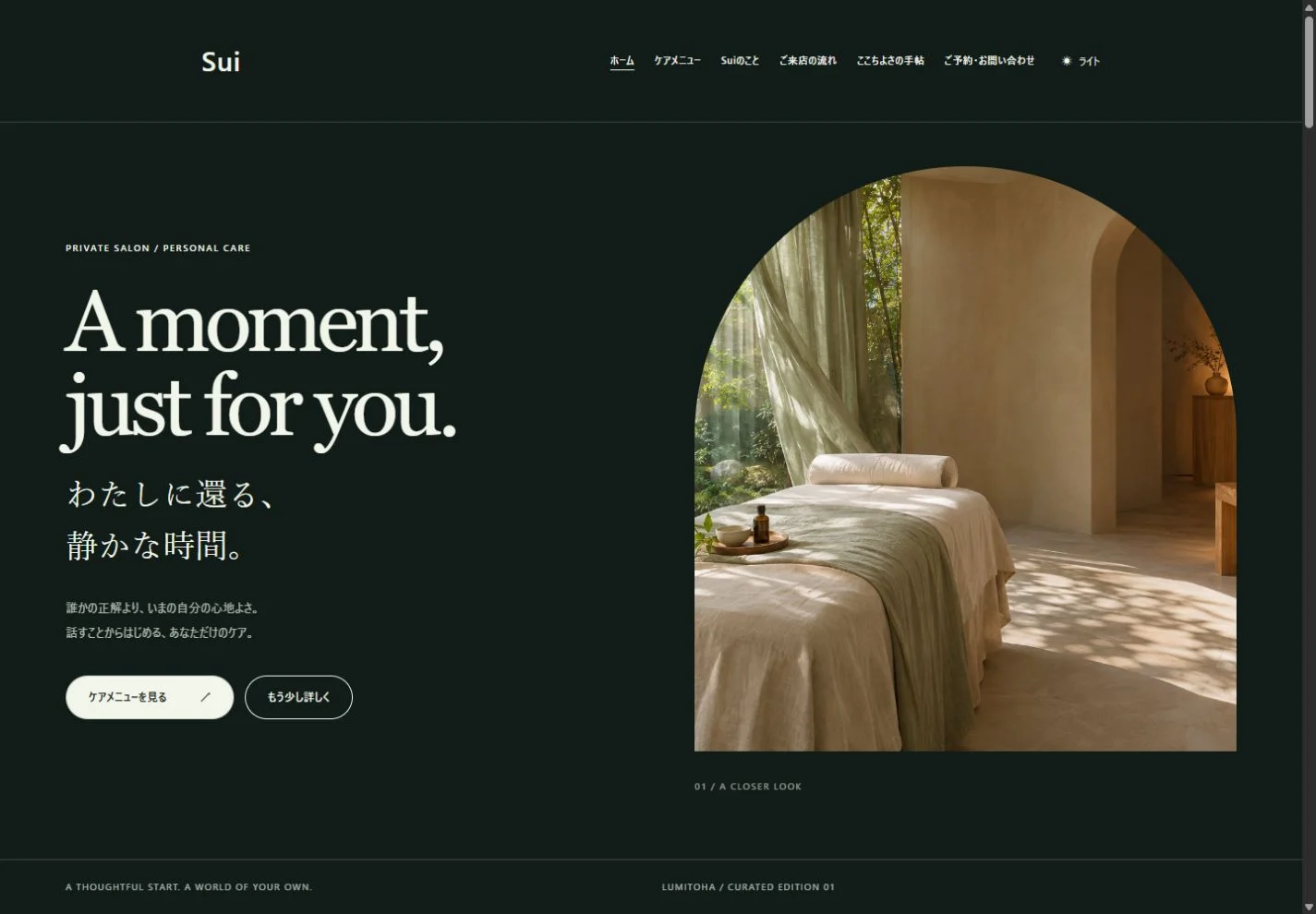
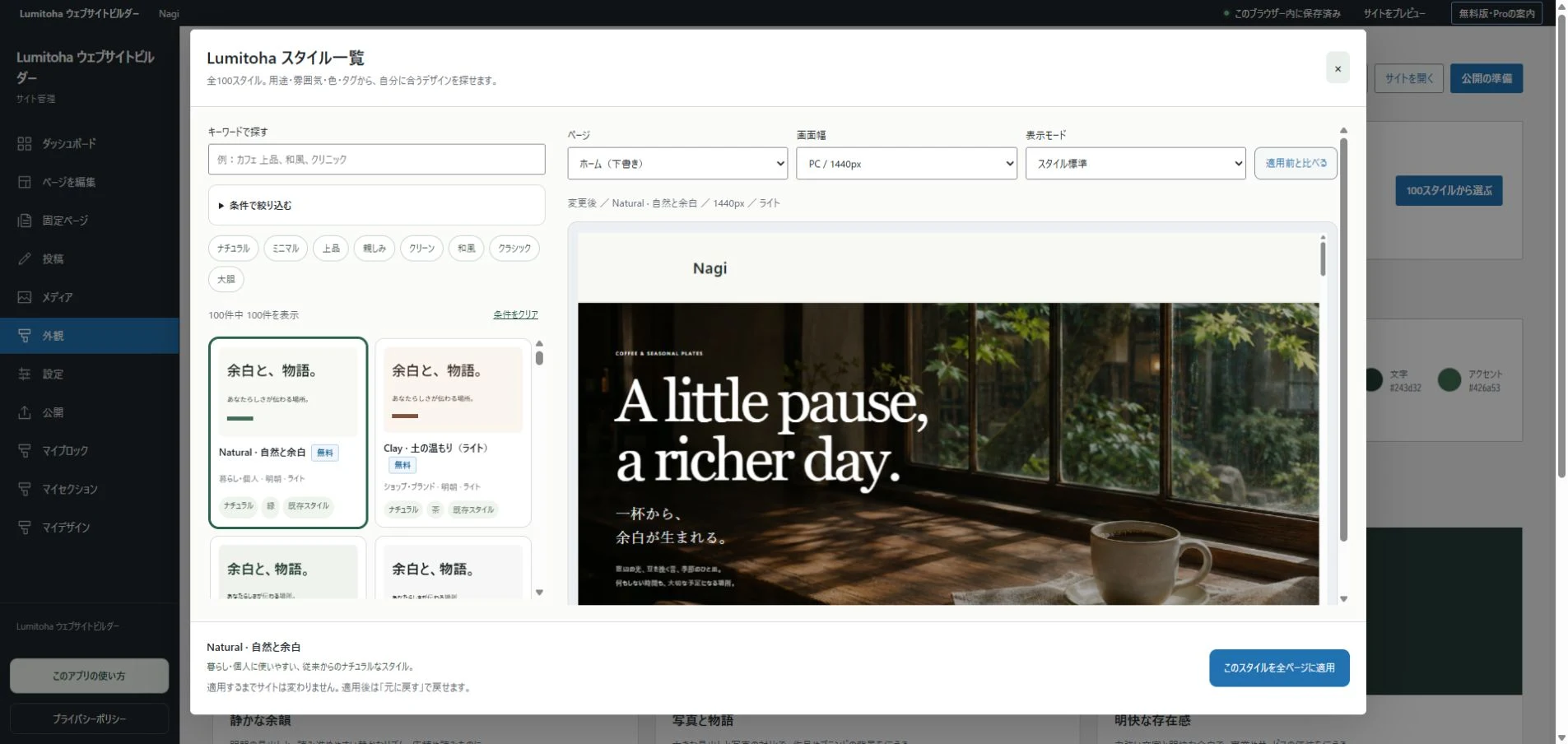
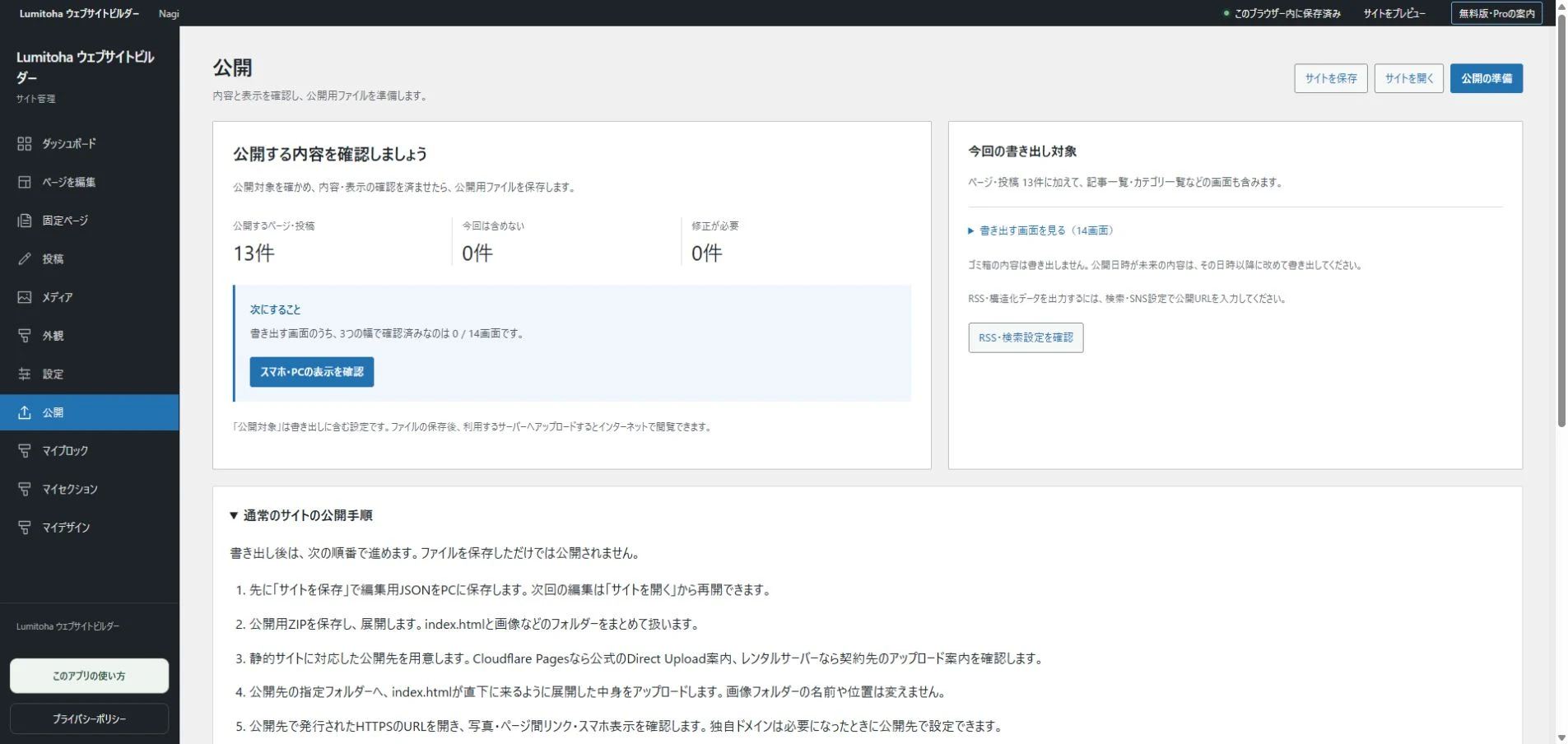
Before publishing a website, check three things: whether the information is accurate, whether visitors can reach the right places and whether you have kept the data needed for future editing. In Lumitoha, preview and check the site, choose its publishing targets, then export HTML or a ZIP. After uploading, check the actual public URL too.
This guide follows the first publication of a website made in the Windows app. Start with details that affect a visitor’s decisions, rather than trying to perfect every visual detail at once.
1. Remove the sample information
Check business names, operator details, addresses, prices, opening days and contact routes. When starting with a finished sample, it is easy to replace the lead photo but leave fictional details in the footer or small-print sections. Review buttons, image descriptions and the bottom of every page as well as the main text.
Date temporary information clearly, and do not present undecided details as confirmed facts. Reviews and results need the same care: never leave fictional ratings or sample figures as if they were your own achievements. If you do not have real examples yet, explain your approach or service instead of filling an empty section with invented evidence.
2. Make each page’s purpose clear
Does the opening heading describe the page? A vague “News” may need more context. Review the title and description used outside the page as well, so that someone arriving from a search result receives the information they expected.
Use headings to organize the topic, its main sections and their supporting explanation, rather than only to enlarge text. Lumitoha’s pre-publication checks help you review headings, descriptions, internal links and image text. Tools can check some structural details; you must still confirm facts such as prices, dates and whether a photograph is appropriate to publish.
3. Follow every link
Do not judge a button only by its label. Follow internal page links, in-page jumps and external booking links to their actual destinations. If a destination changed, check that the old address has not remained elsewhere on the site.
Try the journey in a first-time visitor’s order: understand the offer, read details or prices, then find a way to contact you. Look for dead ends or repeated trips back to the menu. Phone and email links also need a practical check on suitable devices. A visible form is not a complete contact system unless the message can actually reach the operator.
4. Review small screens and keyboard use
Preview widths such as 375, 768 and 1440px. Look for tables or pictures that overflow horizontally, awkwardly broken headings and button labels that disappear. Check whether important information has been pushed far below a large image on a phone.
If a side-by-side layout becomes a vertical stack, does each explanation remain near the image it describes? A real phone helps reveal touch targets and reading comfort that a resized preview cannot fully reproduce. On a computer, use Tab to move through controls and confirm that the focused element is visible. Check that image viewers and expandable information can be closed as well as opened.
5. Check publishing targets and backups
In Lumitoha, set the pages and posts you want to include as publishing targets. Finished samples are created as drafts, so completing the text does not automatically make them part of the export. Drafts and pages with future publishing dates are excluded from that export.
Once the checks are complete, save editable JSON. It is separate from the HTML or ZIP you publish. A dated filename and a short change description help identify the version you last reviewed. Keep an earlier version before major changes. Do not assume that successfully exporting the website also means you have saved an editable backup.
6. Check again at the public URL
You need a separate hosting service. Extract the exported ZIP and upload the HTML, images and other files using your hosting dashboard or another transfer tool. The current app does not transfer files directly to a server. Follow the instructions for the service you use.
After uploading, open the real website rather than only the editor preview. Visit internal pages, check images and links, and review the parts you changed. When adding or editing an article later, save JSON, export again and update the hosted files. Making this final tour part of every update helps catch changes that were saved locally but never reached your visitors.
Plan the pages of your first website
Start with visitors’ questions, organize the information and connect a small set of useful pages before refining the visual details.
Read moreSix ways to make your website writing clearer
Useful headings, one main idea per paragraph, specific explanations and meaningful link labels help readers find their next step.
Read moreGetting started with Lumitoha
From a finished design to saved work and public files.
Read moreShare this article
Share on Instagram
Copy the link and paste it into a Stories link sticker or a direct message.
Open Instagram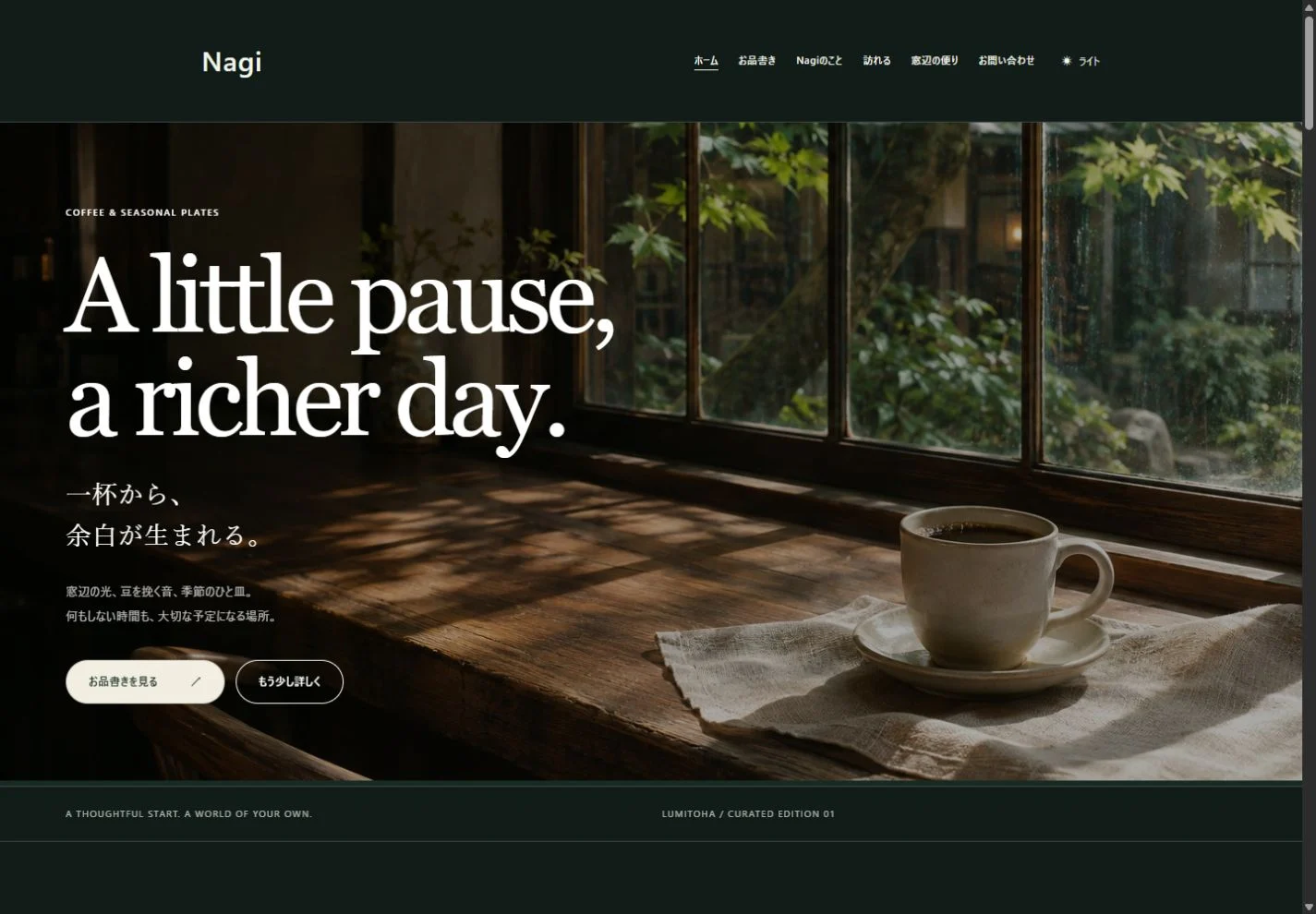
Comments
Your display name and comment appear after approval. Your email address is not public. Please read our privacy policy.
Comments (0)